February 2021 - Note - Interactive Graphics Slurm
We have detected a problem running Interactive graphics. We suspect that to correct the error we will have to update the grid slurm, which will take some time. However, we have an alternative solution that will allow you to use the grid interactively, until the problem is resolved.
## login with -X (or -Y):
ssh -X -l up201xxxxxx submit.grid.fe.up.pt
ou
ssh -X up201xxxxxx@submit.grid.fe.up.pt
## Execute salloc:
salloc bash -c 'ssh -Y $(scontrol show hostnames | head -n 1)'
## Once in the terminal:
module load ansys
fluent
#####
## More information at https://slurm.schedmd.com/salloc.html
## Extra options:
–mem
–mem-per-cpu
–partition
–nodes
–ntasks-per-node
…
## example:
salloc –nodes=2 –ntasks-per-node=2 bash -c 'ssh -Y $(scontrol show hostnames | head -n 1)'
Interactive Graphics
It is possible to use graphical programs on the cluster. However, the speed of the interface will be very slow, their use is limited to interactive jobs (and so your workstation needs to maintain a connection to the cluster at all times) and requires several components:
- Installation and configuration of a X11 server on your workstation
- Configuring your SSH client
- Running the qsub command with an extra argument
The X11 server is a piece of software which displays graphical interfaces, it also includes a protocol for rendering these interfaces across networks. It's normally already installed on Linux workstations, but Microsoft Windows and Mac OS X users will need to install one
The SSH client and qsub need to be called with arguments which tell them to forward a connection from the X11 server on your workstation to the cluster. It's over this connection that the graphical display will be transmitted. Unfortunately, because this connection has to travel over two hops (the SSH connection between your workstation and the submit host, and between the submit host and the cluster node) this usually makes the graphical interface very slow and difficult to use.
After describing how to install a X11 server and configure the SSH client to do X11 forwarding for Windows and Linux, we will show you how to forward X11 connections to the compute nodes using qsub.
Windows
You first need to download an X11 server. We recommend the free utility Xming (the latest version is Xming-6-9-0-31-setup.exe). Once you have downloaded the installer, run it and choose the “Full Installation”:
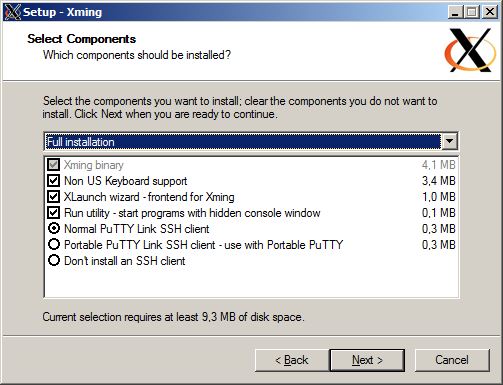
You should then run the Xming program, after which an X icon will appear in the system tray to tell you that the program is running:

You now need to configure your SSH client to forward the Xming X11 server connection from your workstation to the submit host. If you are using the Bitvise client this is done by starting the program and navigating to the “Terminal” tab and enabling the X11 Forwarding→Enabled check box (leave the “Display” as 127.0.0.1:0.0):
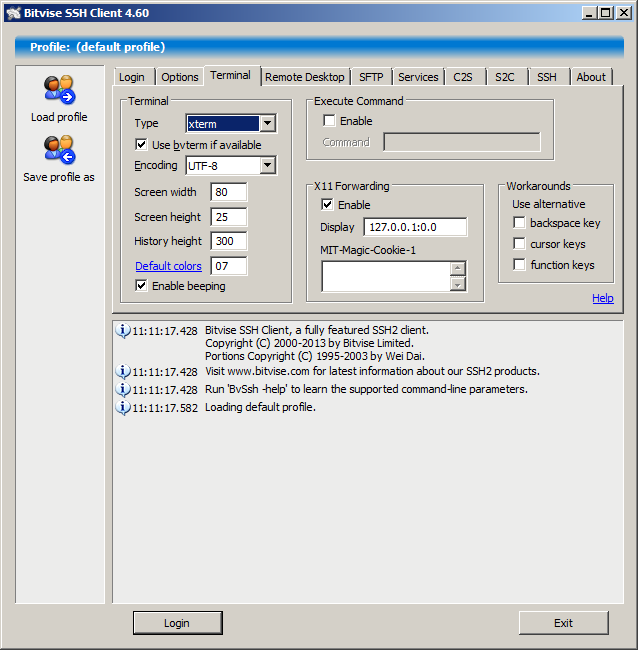
You can now connect to the cluster as usual and follow the instructions for
Mac OS X
Install XQuartz on your Mac, which is the official X server software for Mac Run Applications > Utilities > XQuartz.app
Right click on the XQuartz icon in the dock and select Applications > Terminal. This should bring up a new xterm terminal windows. In this xterm windows, ssh into the linux system of your choice using the -Y argument (secure X11 forwarding). For example, to log into submit.grid.fe.up.pt you would run something like:
ssh -Y -l jbarber submit.grid.fe.up.pt
Once you are logged into the linux system, you can just run the GUI program of your choice (ie. matlab, mathematics, etc) and it will display on your Mac.
Linux
Linux workstations normally already have an X11 server installed, it's the software that shows you your application windows. To test that the X11 server is working correctly, start a terminal from your GUI and run the command:
$ echo $DISPLAY
:0.0
$
If no output appears, something is wrong and you should contact us for assistance.
Next, you need to change the ssh command you use to connect to the cluster by adding the -X argument:
$ ssh -X -l jbarber submit.grid.fe.up.pt
Last login: Tue Jun 11 09:38:31 2013 from smith.fe.up.pt
/usr/bin/xauth:  creating new authority file /homes/jbarber/.Xauthority
$
The -X argument tells the SSH command to carry out X11 forwarding - which allows programs on the submit.grid.fe.up.pt host to open graphical displays on your X11 server on your workstation.
Qsub X11 forwarding
Now you have an X11 server running on your workstation and a connection to the submit host which is forwarding access to the X11 server. But, you don't want to run commands on the submit host, you want to run them on the cluster nodes! So you now need to start an interactive job, changing the command by adding a –x11 argument to request that it does X11 forwarding:
$ srun --x11 -n 1 -c 2 --time=1:00:00 --pty /bin/bash
srun: job 85468 queued and waiting for resources
srun: job 85468 has been allocated resources
$ module load matlab
$ matlab
Now matlab should launch (slowly!) a graphical interface on your desktop.